 TruePx
 Docs / On the page
Edit the page
Try a change on the live page before you touch your code: edit CSS rules the way DevTools does, rewrite text, move or remove elements, and get every change back as a diff you can copy or undo.
Switch to Edit mode#
Click the pencil at the right end of the dock. The switch turns green, the dock swaps its measuring tools for editing tools, and the side panel (if it’s open) shows two tabs: CSS and Changes. Click an element on the page to select it, then edit it from the dock or the panel. Click the square icon next to the pencil to go back to Inspect mode; your changes stay.
Edits only change the page in this tab. Nothing is sent to the website, and nothing changes for anyone else. Reloading the page brings the original back, except for saved CSS rule edits.
Text and HTML tools on the dock#

| Tool | Keys | What it does |
|---|---|---|
| Edit Text | Makes the selected element’s text editable in place. Type, then press Enter (or click elsewhere) to keep it, or Esc to cancel. Shift Enter adds a line break. | |
| Copy | ⌘/Ctrl C | Copies the selected element’s HTML. |
| Cut | ⌘/Ctrl X | Copies the element’s HTML and removes it from the page. |
| Paste | ⌘/Ctrl V | Inserts the HTML on your clipboard right after the selected element. Scripts, frames, forms and event handlers are removed first. |
| Duplicate | ⌘/Ctrl D | Adds a copy of the element right after it. |
| Delete | Delete / ⌫ | Removes the element. |
| Undo | ⌘/Ctrl Z | Undoes the last change, text, HTML or CSS. |
| Redo | ⌘/Ctrl Shift Z | Redoes it. |
The keys act on the page only when you aren’t typing in a field, so they never get in the way of a form. A short message confirms each action (“Duplicated ✓”, “Deleted ✓ (Undo restores)”).
A common use: duplicate a card to see how the layout handles four instead of three, cut a section to see the page without it, or paste in the HTML of a component from your code.
The CSS tab#
With an element selected in Edit mode, the panel’s CSS tab lists every CSS rule that applies to it, in the order the browser applies them, like the Styles pane in DevTools, but editable in plain clicks.

@media (max-width: 900px) rule wins here, so the base rule’s font-size and letter-spacing are struck through.From top to bottom:
- Header: the element’s selector, how many edits you’ve made, and a button to copy the selector.
- Applied styles: the declarations that actually win for this element, all in one place.
- Rules: first
element.style(the element’s own inline style), then every matching rule, most specific first. Each rule shows where it comes from (a stylesheet file and line, or<style>for one inside the page). Rules inside@media,@supportsor@layerare grouped under that condition. Declarations that lose to another rule are struck through. - Inherited from: rules on parent elements whose inherited properties (color, font…) reach this element.
- Classes: the element’s class list, editable, with suggestions from classes used on the page.
How to edit#
- Change a value or property: click it, type, and press Enter.
- Turn a declaration off: untick its checkbox; tick it to bring it back.
- Add a declaration: click the closing
}of a rule, or the empty space inelement.style. - Change a selector: click it and type a new one; the rule then applies to whatever the new selector matches.
- Add a rule: the + next to Rules creates a new rule for the selected element’s selector.
- Edit classes: click a class in Classes to rename or remove it, or add one.
Editing a rule changes every element that rule matches, exactly as changing it in your stylesheet would. To change only this one element, edit element.style.
Rules in a stylesheet loaded from another site (a CDN, a font service) can’t be read by extensions, so they aren’t listed. Everything the page’s own stylesheets and <style> tags contain is.
The Changes tab#
Every CSS change you’ve made on this page, as a diff: one block per changed rule, element.style or class list, with removed lines in red and added ones in green. Use it to copy your changes into your code, or to undo them.
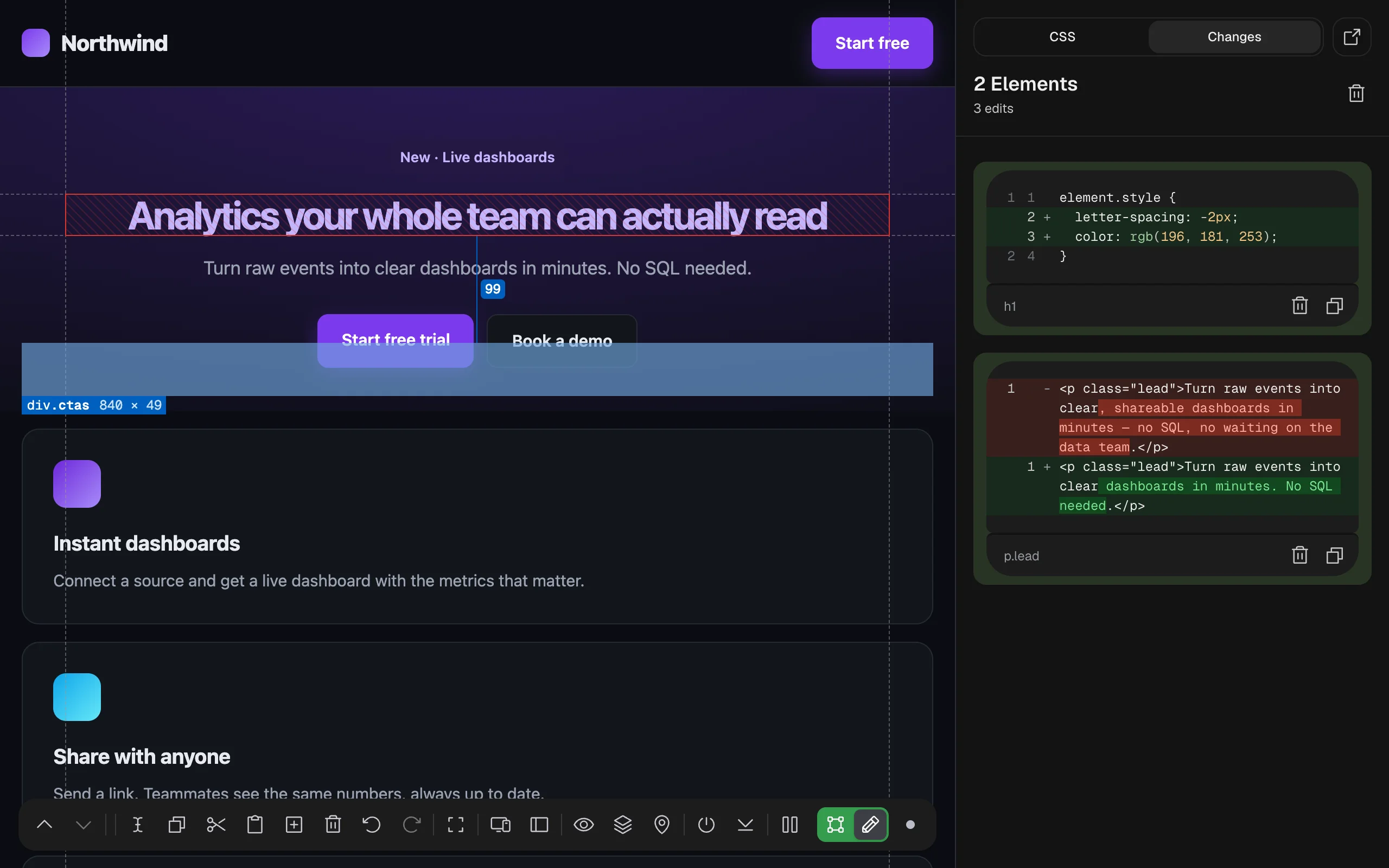
element.style, shown as added lines.- Copy (on each block) copies the rule’s new CSS, ready to paste into your stylesheet.
- Revert (bin icon on each block) undoes that rule’s changes.
- Revert All (bin icon at the top) undoes every CSS change on the page.
The header counts the blocks and your edits in total. Text and HTML changes (Edit Text, paste, duplicate, delete…) aren’t listed here; undo them with Undo on the dock.
Saved edits#
Changes to CSS rules, including rules you added, are saved in your browser for that page address. The next time you turn TruePx on there, they’re put back, and a message says how many (“2 saved edit(s) re-applied — open Changes to undo them”). Revert them in the Changes tab to forget them.
Edits to element.style, class changes, text and HTML edits are not saved: they last until you reload the page.
Saved edits never leave your browser; see what is stored.
Tips#
- To fix low contrast without guessing colors, use Fix all contrast issues in the Element tab: it finds the smallest color change that passes, and Undo brings the old color back.
- To check an edit at other screen sizes, open the responsive preview. Edit mode works inside each viewport.
- An AI agent connected through MCP can make the same kinds of edits; Undo on the dock takes them back too.