 TruePx
 Docs / More
Settings & privacy
The settings page, the permissions TruePx asks Chrome for and why, what it keeps on your computer, and the few times it contacts another service.
Open the settings#
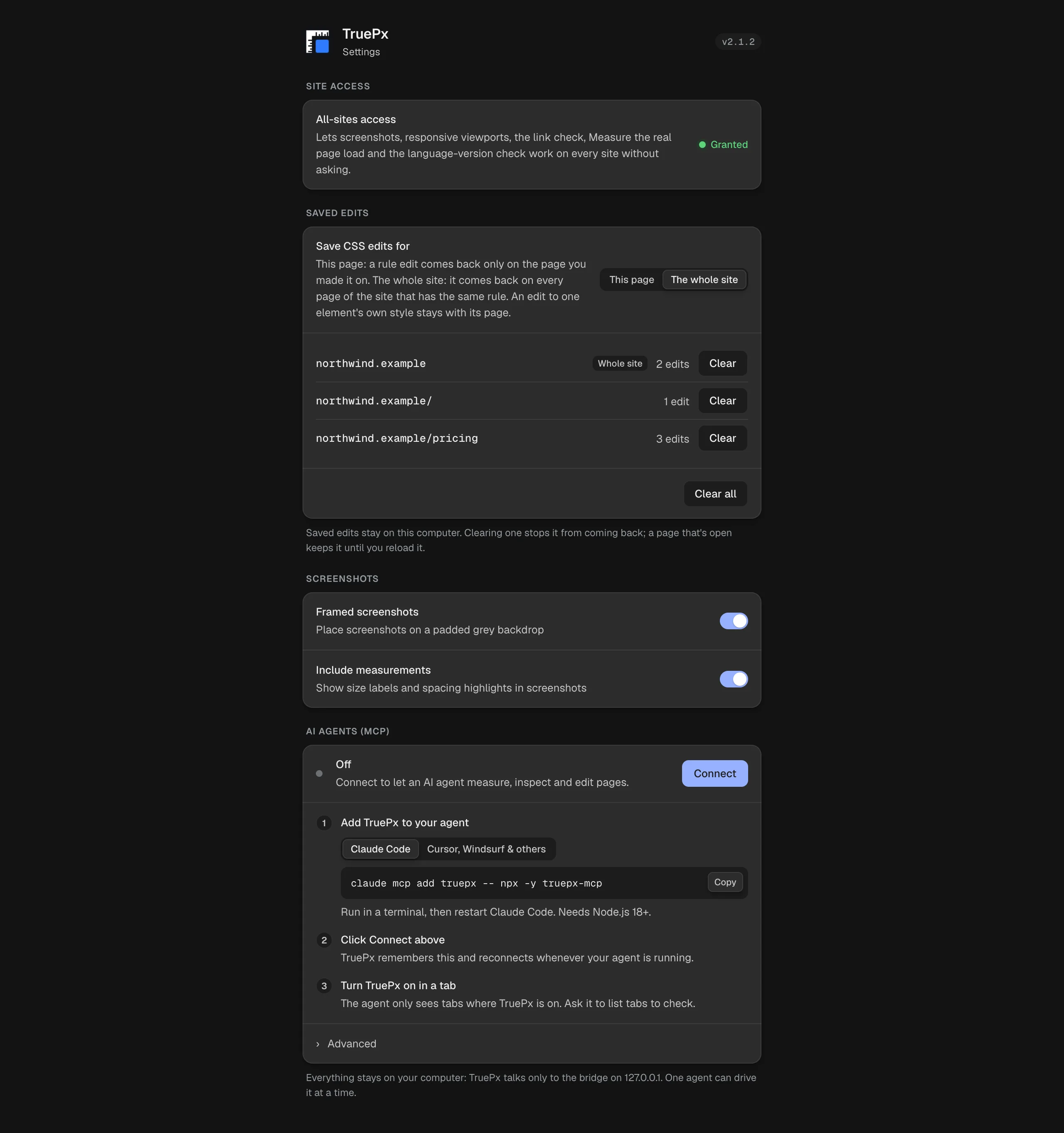
Right-click the TruePx icon in Chrome’s toolbar and choose Options, or click the dot at the right end of the dock. The version you have is shown at the top right.
Site access#
By default TruePx can only read a tab after you turn it on there, and only that tab. A few features need to reach other addresses or watch a page load:
- element screenshots after the tab has moved to another site,
- loading sites that block framing in the responsive preview,
- Check links (visiting each link on other sites),
- Measure the real page load,
- Check each version links back.
When one of them needs it, Chrome asks you for the permission at that moment (for screenshots, TruePx tells you instead). Grant all-sites access gives that permission once, so they work everywhere without asking. When it’s granted, the card says Granted. To take it back, open chrome://extensions, click Details under TruePx, and change Site access.
Screenshots#
Options for the dock’s element screenshot, both on by default:
- Framed screenshots: places the screenshot on a padded grey backdrop with rounded corners. Off saves just the element and its surroundings.
- Include measurements: keeps TruePx’s size label and spacing highlights in the image. Off gives a clean picture of the element.
AI agents (MCP)#
Connect an AI coding agent. The status, the setup steps and an Advanced bridge address are explained in AI agents.
Permissions#
What TruePx asks Chrome for, in plain words:
| Permission | Why |
|---|---|
activeTab | Read the tab you turn TruePx on in, and only after you do. |
scripting | Add the dock and tools to that tab. |
storage | Keep your settings, saved edits and pins on your computer. |
contextMenus | The TruePx item in the right-click menu. |
tabs | Know which tab the side panel and an AI agent are working with. |
sidePanel | Show the side panel beside the page. |
declarativeNetRequestWithHostAccess | Let the responsive preview show sites that block framing, for this tab only, while the preview is open. |
webRequest | Record one tab’s reload when you click Measure the real page load. |
| All sites (optional) | The features listed under Site access. Only if you grant it. |
What is stored#
Only on your computer, in Chrome’s storage for the extension:
- Your preferences: grid settings, responsive viewports and zoom, screenshot options, and similar.
- Edits you make on a page, with the page’s address, so saved edits can be put back.
- Pins, with the page’s address.
- Audit issues you chose to ignore on a site, and the last audit of a page (for “Since the last check”).
- Your PageSpeed API key, if you add one.
- A measured page load, only while that tab is open.
None of it is sent anywhere. Uninstalling TruePx deletes it.
What TruePx sends#
TruePx has no account, no analytics and no tracking, and never sends anything to its developer. It makes network requests only for these:
- The page you’re checking: the SEO and Audit tabs request the page’s address again (with and without your cookies) to read its status and headers, and the SEO tab reads its robots.txt, sitemap and share image, and one made-up address to test for 404s. The answers stay in your browser.
- Check links and Check each version links back, when you click them: each link or language version is requested to read its status. The answers stay in your browser.
- Google’s test, when you click it: the page’s address goes to Google PageSpeed Insights.
- Check grammar, when you click it: the page’s full sentences go to LanguageTool (languagetool.org). Don’t run it on text you can’t share.
- AI agents, if you connect one: TruePx talks only to the bridge on your own computer. Your agent may send what it receives to its own service, under its own terms.
The full details are in the privacy policy.